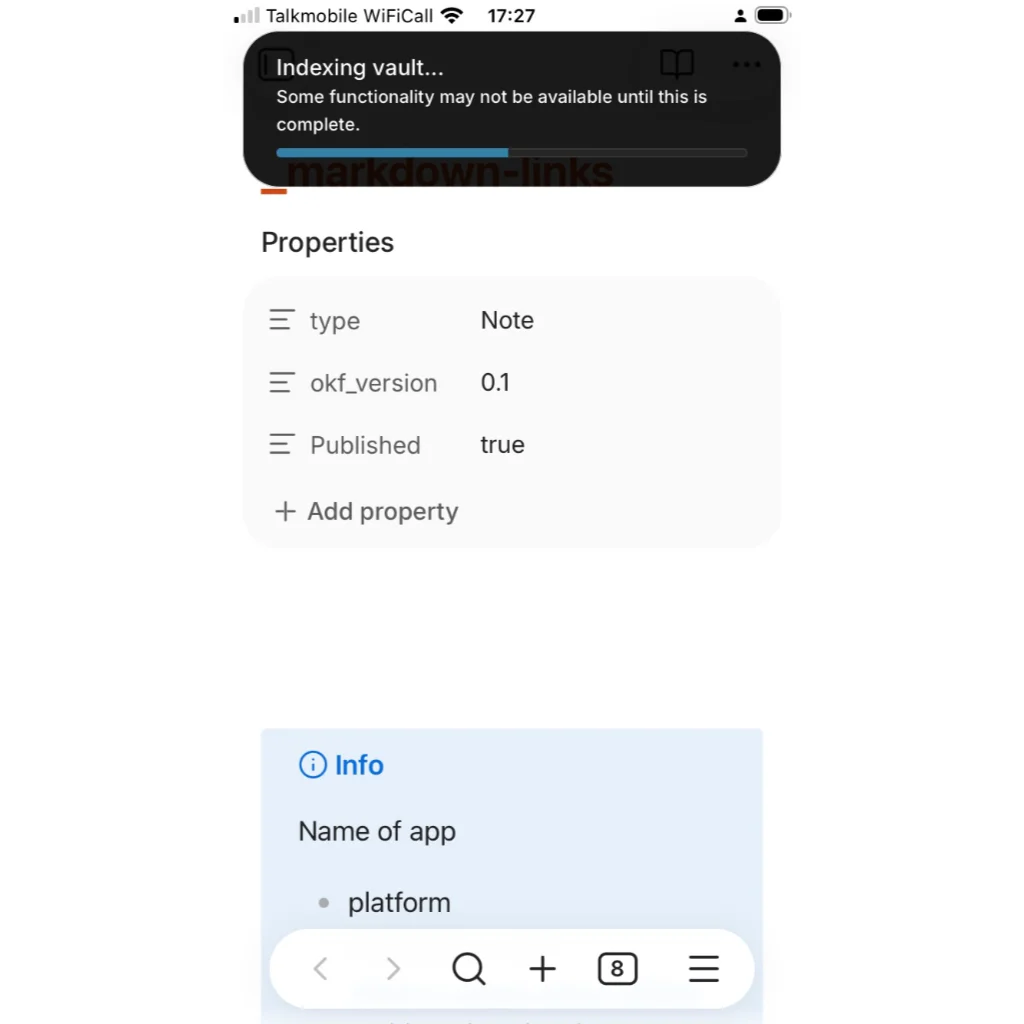
A solution, sort of, to Obsidian’s ‘Indexing vault…’ problem
News from the world of markdown
Edit: See Update below
I’m not saying what follows is the solution to the problem of Obsidian’s interminable ‘Indexing vault…’ message on iOS, but it’s the best – make that the only one – I have come across.
The remainder of Obsidian’s message to users reads Some functionality may not be available until this is complete. When all you want to do is update a single note, it can be infuriating.
I found this on an Obsidian forum. Not sure where, so I can’t provide the link:
- Open
Settingson iOS. - Go to
Files and links > Rebuild vault cache. - You will have to scroll to the bottom of
Files and linksto find theRebuild vault cacheoption.
Note that this may take anything from a few seconds to a number of minutes before you can exit settings.
This worked for me in a matter of seconds for a small vault that included just shy of 1000 notes. Larger collections of notes take longer.
But it didn’t last. I was out working one day. When I returned, I went to update a note in Obsidian on my mobile and the Indexing vault… issue had returned.
So, instead of persisting with Obsidan, I opened another app, the free and open source Wander, which seems to handle the situation in a much more timely manner. Remember that a vault is simply a folder, so you can open it with any app.
This doesn’t mean I’m walking away from Obsidian, far from it. I still use its macOS app every day. But I am leaving Obsidian’s iOS app well alone until the powers that be sort it out or another solution presents itself.
Update
Thanks to endlessroll for this update, despite their snarky comment about this post.
They said: “Vault indexing issues are usually caused by sync clients like iCloud off-loading files to the cloud because the user didn’t select “keep downloaded” on the app folder. Otherwise, turning off community plugins and sending in a bug report is the solution.”
If you have never come across the solution ‘keep downloaded’ in iCloud, as I hadn’t, here it is:
- Go to
Fileson iOS. - Locate your
Obsidianfolder. - Press and hold the Obsidian folder.
- Select
Keep downloadedfrom the resulting menu.
That’s it. Problem, sort of, solved.
Haven’t found what you’re looking for? Try this site’s list of recommended markdown editors.