Review: Markdown Mate
Links to the best markdown editors, static site generators, CMS’s, and markdown viewers
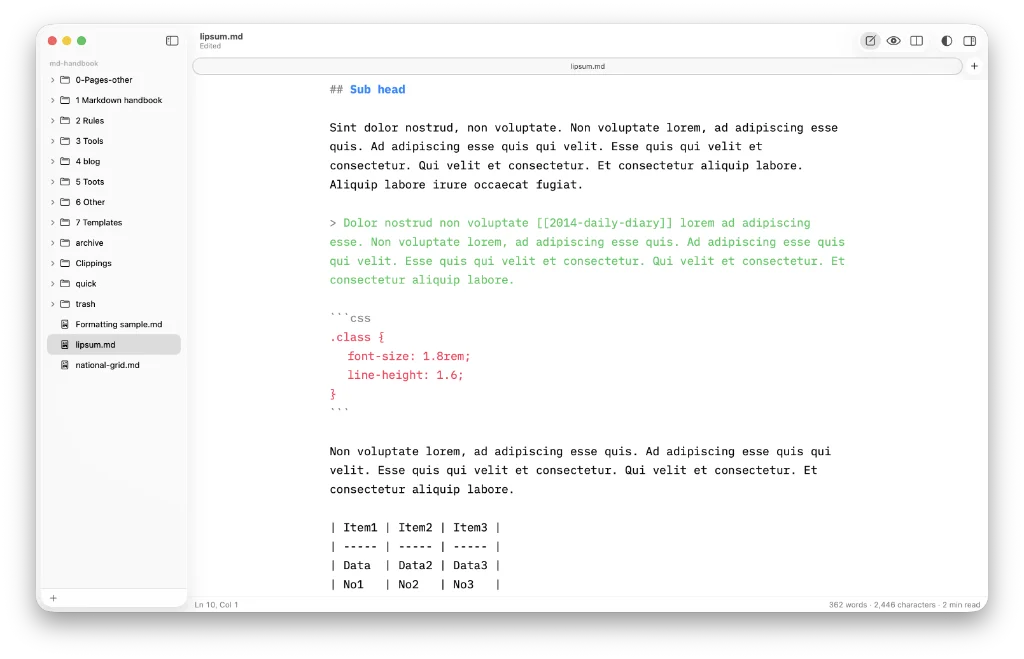
Markdown Mate is a free markdown editor available on the App Store. It is simple, quick, but does not do wiki links, so you won’t be using it as a knowledge manager. If I’m right that is not the developer’s intention.
Last looked at in Markdown Link no. 38, Markdown Mate is now on release v2.3. When I installed the app back in June of this year it was on v1.14.
There have been a lot of changes in the space of three months. Markdown Mate now has a more polished, professional feel. All the buttons – and they are few – feel in the right place. If you are more of a keyboard-first operator then you’re catered for, with ⌘1 showing the editor, ⌘2 the reading view and ⌘3 the split view.
This is only a small selection of the quick-keys available. There are more covering file, views and formatting operations.
Features added with this latest release include find in preview, light/dark button, toolbar your way, settings (one of the buttons), comfortable text width, and Markdown Mate is now faster with bigger folders that contain more notes.
Also added since v1.14 are such niceties as a popover menu appears when you right-click (control-click) a folder/file in the sidebar, allowing you to rename a file or delete it, among other options. The outline has also moved to the right sidebar, rather than appearing as a toggle at the top of the left sidebar.
As mentioned earlier, wiki links have not been added, but do you really need them? If you do then Markdown Mate is not for you. If, on the other hand, you don’t then come on in.
Markdown Mate is a simple markdown editor that, like the best of them, doesn’t do a lot. Or at least, it seems that way. What it does do is allow you to open a workspace – a folder that contains sub folders – and get on with writing.
Syntax highlighting can be on or off. With it on, code blocks and blockquotes are assigned a colour, and emphasis is applied and wrapped in greyed-out asterisks. Headings are treated in a similar way with the syntax be greyed-out and the heading assigned a colour. But headings are not weighted, as in many markdown editors, with their size remaining the same as the base font-size applied under Settings > Editor.
Look at the formatting menu and you’ll see tables are one of the few missing items. You are expected to type out the pipes, hyphens and colons. Tables are a rare thing in my work, but, if I’m honest, it could do with a table renderer that offered a way to add columns and rows without having to resort to the pipes and braces approach.
Another area where the developer could make a difference is on export. Currently, Markdown Mate exports to HTML and PDF only, options which are a bit thin on the ground. The developer could add a few more here, such as markdown, plain text and rich text.
If you are wondering why I say export to markdown when the document is already saved in markdown, there’s good reason. It saves time; rather than having to open the Finder, locate the file, copy it to its destination, you simply export it, whether for use by another app or to share the document with someone.
Markdown Mate is not one to dismiss on these grounds alone. Download it, take it for a spin, and give its tyres a good kick while you’re at it.
Available for macOS.
Link: Markdown Mate
Haven’t found what you’re looking for? Try this site’s list of recommended markdown editors.